# Importing Case Studies into KeYmaera X
--
Author: Nathan Fulton
Category: Automated Reasoning
Date Published: 04-12-2017
--
KeYmaera X provides a simple mechanism for authors of tutorials, demos, and case studies to publish their KeYmaera X
model and proof files.
This note explains how readers, reviewers, and students can review authior-supplied case studies using the
[public instance](https://web.keymaerax.org) of KeYmaera X.
There are 3 steps:
* Register an Account
* Import the case study using the Import Tool
* Review the case study and associated proof.
### Registering an Account
We provide a [public instance](https://web.keymaerax.org) of KeYmaera X that is easy to use.
If you prefer, you may also install KeYmaera X locally
by [following the instructions on the KeYmaera X website](http://www.ls.cs.cmu.edu/KeYmaeraX/download.html)
(notice: the Mathematica dependency is non-optional for most case studies. Also, you will need KeYmaera X verion 4.3.8 or newer!).
If you do not want to install KeYmaera X locally -- or if your institution does not provide a Mathematica license --
you may also create an account on our [public instance](https://web.keymaerax.org).
Regardless of whether you use the public instance or a local copy, you will need to create an account.
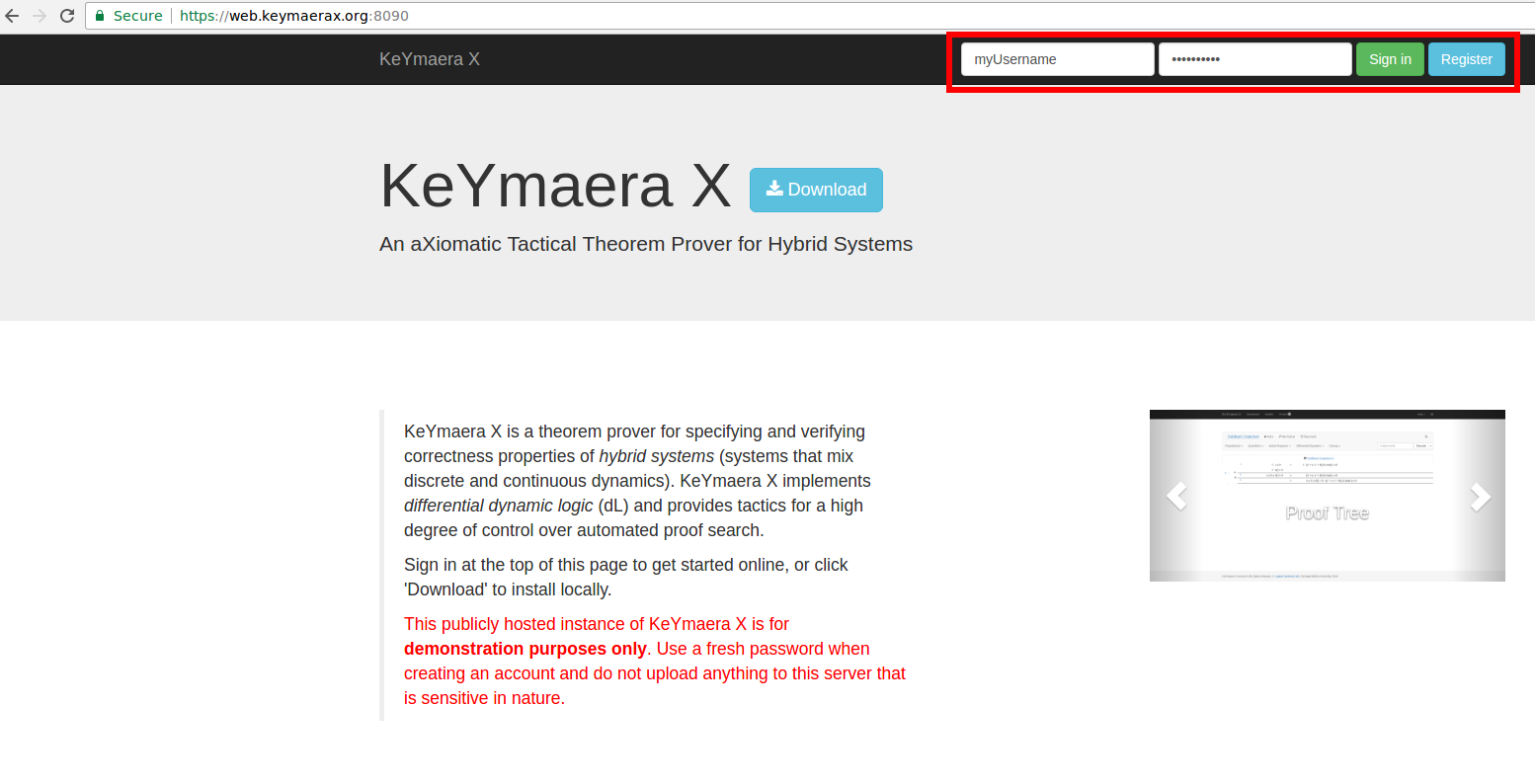
You can do this by entering a username and password in the text fields on the top-right of the screen
and clicking the blue "Register" button. Accept the license agreement and select "Industry Mode"
from the drop-down box.
 ### Using the Import Tool
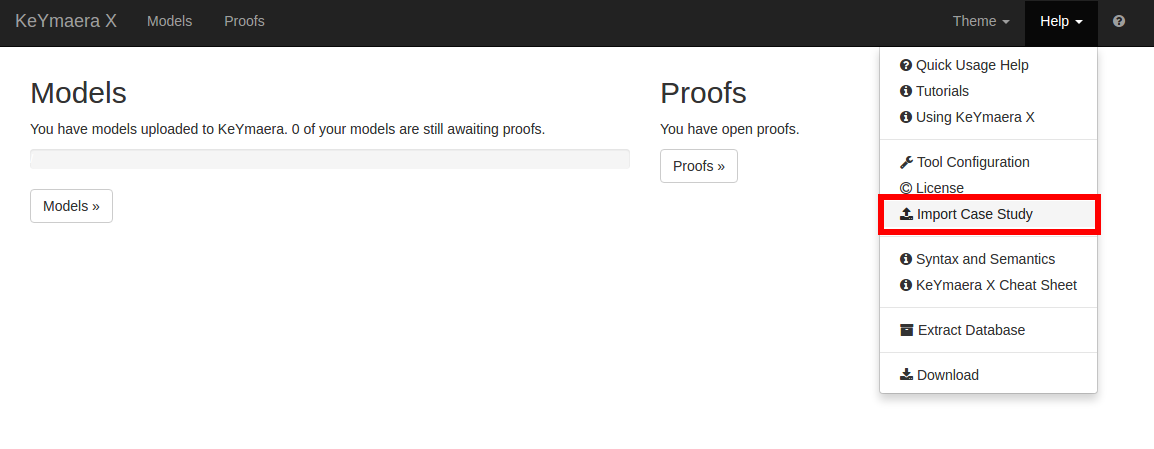
Once you are logged in, open the "Help" menu on the top-right corner of the screen and click on
"Import Case Study":
### Using the Import Tool
Once you are logged in, open the "Help" menu on the top-right corner of the screen and click on
"Import Case Study":
 KeYmaera X will ask for a URL. This is where you enter the author-supplied URL ending in `.json`.
For example, suppose the author provided the url `https://nfulton.org/kyx_examples/example/example.json`.
Then you would enter this URL and press the "Upload" button:
KeYmaera X will ask for a URL. This is where you enter the author-supplied URL ending in `.json`.
For example, suppose the author provided the url `https://nfulton.org/kyx_examples/example/example.json`.
Then you would enter this URL and press the "Upload" button:
 If the import is successful, you should be redirected to the "Models" page. This page contains a list
of the models that are associated with the user's case study.
### Reviewing Artifacts
To view an imported model, click on its name. A modal dialog should appear.
From this model dialog, you can re-run the author's proof using the "Prove with Associated Tactic"
button at the bottom of the screen. Loading the proof may take a while.
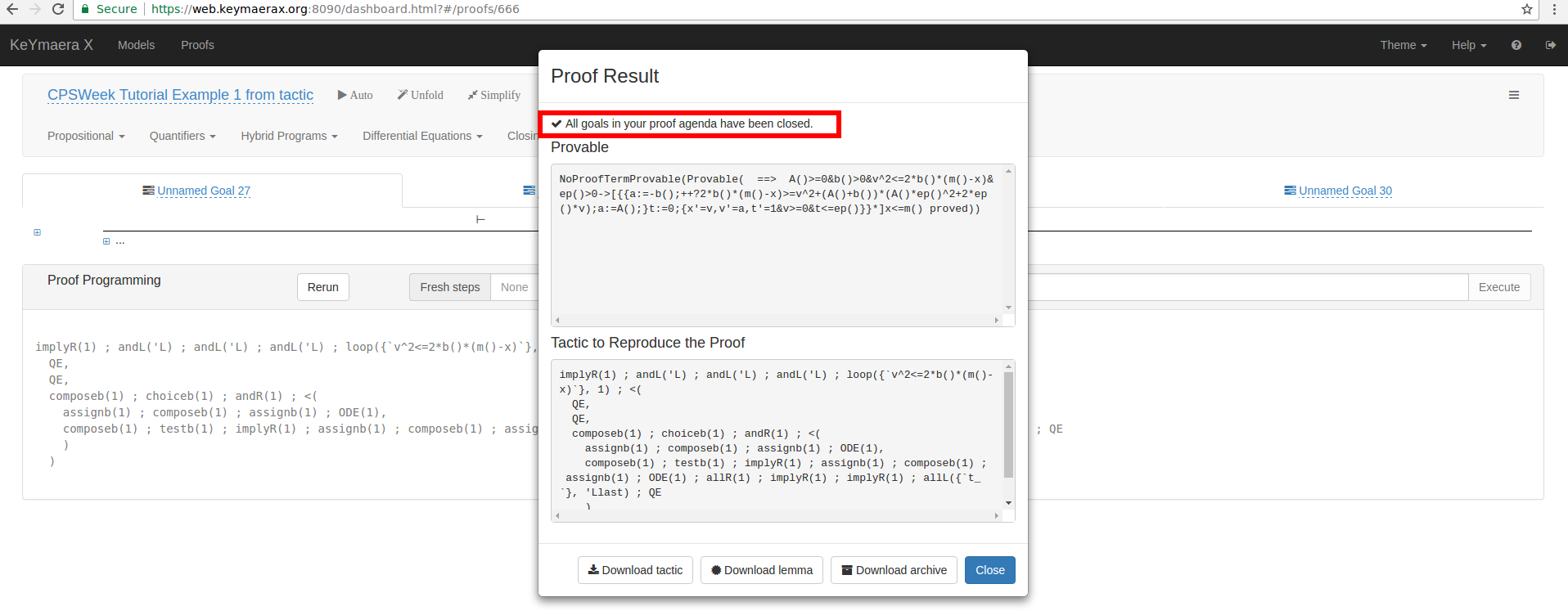
If the proof is successful,
then you should be re-directed to a page that contains a modal dialog that looks something like this:
If the import is successful, you should be redirected to the "Models" page. This page contains a list
of the models that are associated with the user's case study.
### Reviewing Artifacts
To view an imported model, click on its name. A modal dialog should appear.
From this model dialog, you can re-run the author's proof using the "Prove with Associated Tactic"
button at the bottom of the screen. Loading the proof may take a while.
If the proof is successful,
then you should be re-directed to a page that contains a modal dialog that looks something like this: